
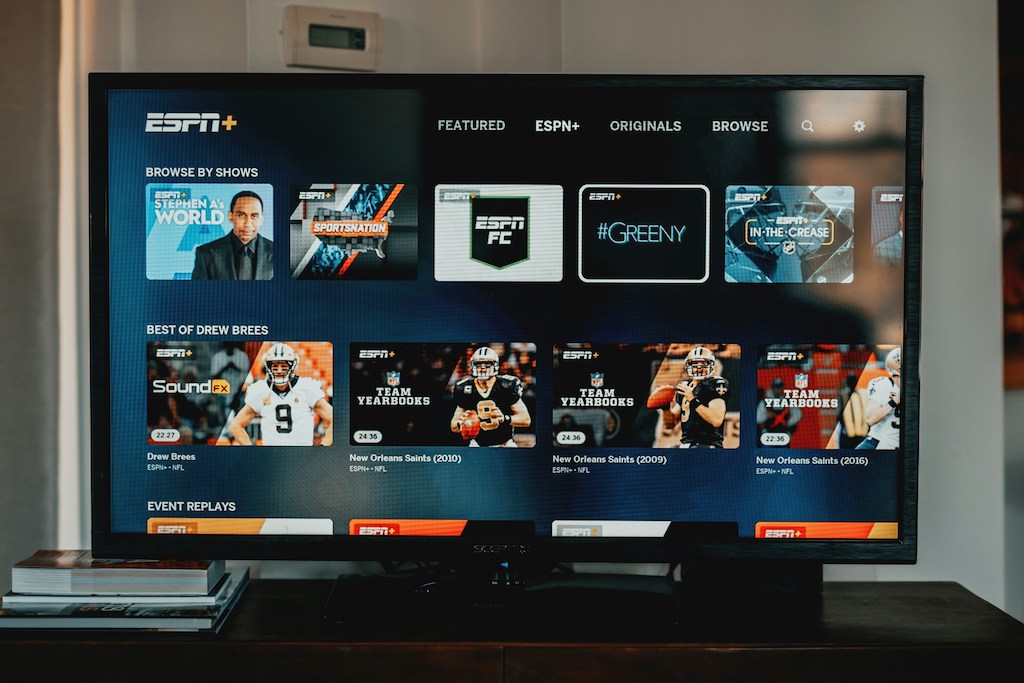
Watching TV in 4K HDR via IPTV requires a complete technical chain with no weak link: the provider must offer 4K streams, your box must decode them, your HDMI cable must carry them, and your TV must display them. This guide details every setting, from the IPTV app to the TV, to achieve optimal 4K HDR picture quality without artifacts or buffering.
Hardware Requirements for 4K HDR IPTV
| Component | Minimum Required | Recommended |
|---|---|---|
| TV | 4K UHD, HDMI 2.0, HDR10 | 4K OLED/QLED, HDMI 2.1, HDR10+ or Dolby Vision |
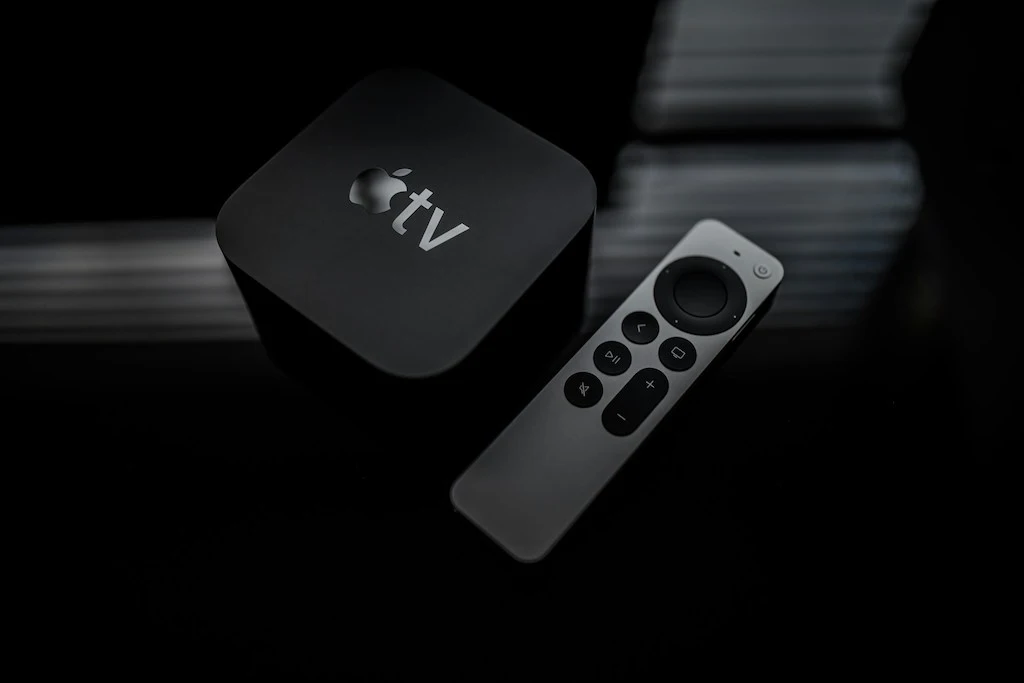
| Box / Player | Any Android TV with hardware H.265 decoder | Formuler Z12, Nvidia Shield Pro, Apple TV 4K (3rd gen) |
| HDMI Cable | HDMI 2.0 certified High Speed | HDMI 2.1 certified Ultra High Speed |
| Network Connection | 20 Mbps stable | 100 Mbps+ fiber via Ethernet cable |
| IPTV App | Any player with H.265/HEVC support | IPTV Smarters Pro, TiviMate, MyTVOnline 2 |
Android TV Box Settings
Resolution and Frame Rate
Set your box’s HDMI output to “Auto” or “4K UHD 60Hz” depending on your TV. “Auto” mode is preferable because the box automatically adapts the resolution to the maximum supported by the TV. Enable “Match Frame Rate” (also called “Auto Frame Rate” depending on the brand): this option switches the TV between 24 Hz (cinema), 25 Hz (broadcast), 50 Hz (PAL sport), and 60 Hz based on the content. Without this option, everything is converted to 60 Hz with an artificial look on content filmed at 24 Hz.
HDR Mode on the Box
Leave HDR mode on “Auto”: the box detects the HDR metadata in the stream and signals the correct format to the TV (HDR10, HDR10+, HLG, or Dolby Vision). Forcing a specific HDR mode can result in an overexposed image or incorrect colors if the stream is encoded in a different format.
IPTV App Settings
Hardware Decoder
Enable the hardware decoder in your IPTV app settings. In IPTV Smarters Pro: Settings → Player → Decoding Mode → HW (Hardware). In TiviMate: Settings → Player → Decoder → Hardware. The hardware decoder offloads H.265/HEVC processing to the box’s GPU, which is optimized for this task. Without it, the CPU must decode everything — resulting in overheating, slowdowns, and artifacts on 4K streams.
Streaming Protocol: HLS vs TS
IPTV 4K streams primarily use two protocols: TS (Transport Stream) and HLS (HTTP Live Streaming). TS offers the lowest latency (useful for live events) but is less tolerant of connection fluctuations. HLS segments the stream into small chunks and adapts to network variability. On a stable fiber connection, prefer TS for lower latency. On a variable connection (Wi-Fi, 4G), HLS is more resilient.
TV Settings: Calibration for IPTV Content
Picture Mode: Avoid “Dynamic” Mode
“Dynamic” or “Vivid” mode pushes backlight to maximum and over-saturates colors — designed for showrooms, not home viewing. For IPTV (and HDR content in general), choose “Movie”, “Cinema”, or “Calibrated” mode depending on your manufacturer’s terminology. These modes respect the REC.2020 or DCI-P3 color space required for HDR.
HDR Peak Brightness
In HDR10, TVs display brightness peaks up to their maximum capacity (400 to 1,500 nits depending on the model). Do not manually adjust brightness in HDR mode — it is managed automatically by the TV’s tone mapping. If the picture looks too dark, check that your TV has correctly detected the HDR signal (an HDR icon should appear in the corner of the screen during playback).
Disable Artificial Image Processing
Modern TVs include many image processing algorithms: motion interpolation (Motion Smoothing, TruMotion, MotionFlow), artificial sharpening, noise reduction. These processes degrade native 4K HDR image quality and add extra latency (40 to 80 ms depending on the manufacturer). Disable all of them using the TV’s Game Mode if available, or manually in the advanced picture settings.
Network Connection: Fiber vs DSL vs 4G for 4K Streams
An IPTV 4K H.265 (HEVC) stream consumes between 15 and 25 Mbps. A 4K H.264 stream (less common, less efficient) can consume up to 50 Mbps. Recommended minimum connections:
| Connection Type | Available Speed | 4K H.265 Possible? | Recommendation |
|---|---|---|---|
| FTTH Fiber (100 Mbps+) | 100 Mbps – 8 Gbps | Yes, optimal | Ideal connection, use Ethernet |
| VDSL2 (improved DSL) | 30–100 Mbps | Yes if stable | Ethernet required, avoid peak hours |
| Standard DSL | 5–20 Mbps | Marginal | Limit to 1080p, increase buffer to 3,000 ms |
| Fixed 4G/5G | 20–200 Mbps | Possible if stable | Check stability (no variation >20%) |
| Mobile 4G | 10–50 Mbps variable | Not recommended | Prefer 1080p, enable HLS |
Diagnosing 4K HDR Picture Issues
4K picture but no HDR (SDR only)
Likely cause: the HDMI cable or your TV’s HDMI port is not enabled in HDMI 2.0/2.1 mode. On Samsung, LG, and Sony TVs, you must manually enable “Enhanced HDMI Mode” or “HDMI Signal Plus” in the TV settings, port by port. This option is not enabled by default on all HDMI ports.
Artifacts or broken picture in 4K H.265
The hardware decoder does not support this specific stream. Temporarily switch to software decoder (SW) to verify. If the picture becomes correct in SW mode, the exact codec of the stream (H.265 main10 variant, 10-bit) is not supported by your box’s GPU. Solution: use a newer box (Formuler Z12, Nvidia Shield) or ask your provider if an H.264 version of the 4K stream is available.
No audio or out-of-sync audio in 4K HDR
4K H.265 streams often use Dolby Digital Plus (EAC-3) or AAC audio. If your amplifier or soundbar does not recognize these formats, set the box’s audio output to “Stereo PCM” — internal conversion to a universal format. For Dolby Atmos, enable “Pass-through” mode and verify that your audio equipment is Dolby Atmos certified.
FAQ — IPTV 4K HDR
Do all IPTV providers offer 4K streams?
No. 4K streams represent approximately 5 to 15% of the catalog at providers that offer them. Before subscribing, verify that your provider includes 4K channels and that their server is geographically close (ideally under 30 ms latency).
HDR10 or Dolby Vision: what is the difference?
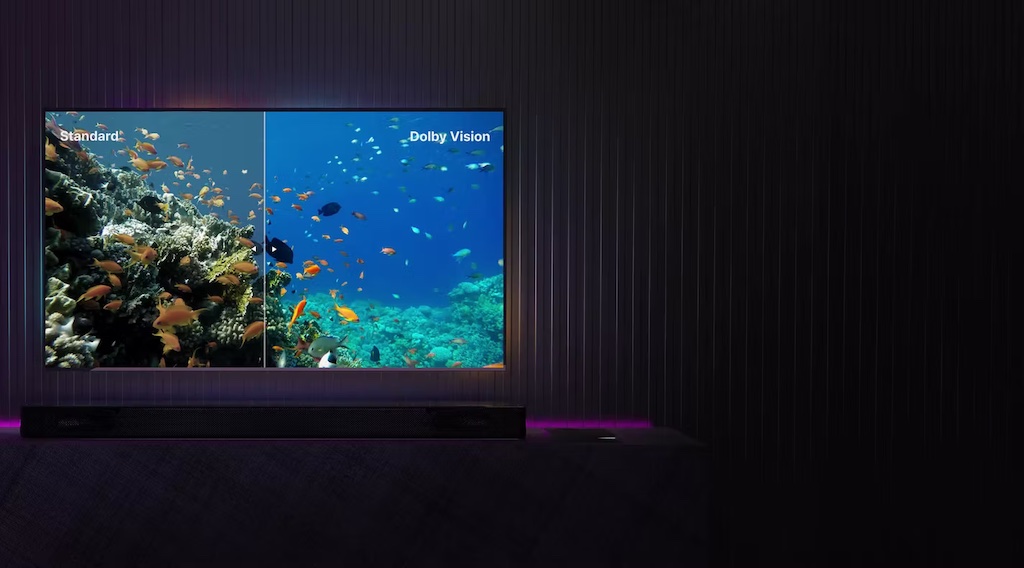
HDR10 is an open standard supported by all recent 4K TVs. Dolby Vision is a more precise proprietary format (dynamic per-scene metadata vs. static metadata for HDR10) but requires a license. The majority of IPTV streams are in HDR10. Dolby Vision is primarily found on SVoD platforms (Netflix, Disney+).
What is the actual bandwidth of a 4K IPTV stream?
In H.265: between 15 and 25 Mbps depending on content (sports are more demanding than movies due to more motion information). In H.264: 40 to 60 Mbps. Reputable providers use H.265 for all their 4K streams — make sure yours does before pointing to a connection issue.
Can the Fire Stick 4K Max play 4K HDR streams?
Yes, the Fire Stick 4K Max supports 4K UHD, HDR10, HDR10+, HLG, and Dolby Vision. It has a hardware H.265 decoder. Limitation: 2 GB of RAM can cause slowdowns on lists of more than 40,000 TV streams. On IPTV Smarters Pro, lists loaded via Xtream Codes (automatic pagination) do not have this issue.
Calibrating Your TV for IPTV Content: Settings by Brand
Samsung (Neo QLED, QLED, Crystal UHD)
On recent Samsung TVs, enable “Input Signal Plus” (or “Enhanced HDMI Mode”) on the HDMI port used by your box: Settings → External Device Manager → Input Signal Plus → enable the corresponding port. Without this option, the TV limits HDMI bandwidth to HDMI 1.4 and does not accept 4K@60Hz or HDR10+. Recommended picture mode: “Movie” or “Natural”. Disable Auto Motion Plus (motion blur reduction) to avoid the soap opera effect on cinematic content.
LG (OLED, QNED, NanoCell)
On LG, enable “HDMI Ultra HD Deep Color” on the relevant HDMI port: Settings → Picture → Advanced Settings → HDMI Ultra HD Deep Color. Picture mode: “Cinema” or “Expert (Dark)” for rooms with low ambient light. LG OLED TVs offer “Dolby Vision IQ” which adjusts HDR brightness based on ambient light — a useful feature if you watch in varying lighting conditions. Disable TruMotion (motion interpolation) at 0 or use “Film” mode.
Sony (Bravia XR, X90K, X85K)
On Sony Bravia, set “HDMI Signal Format” to “Enhanced” on the port in use: Settings → Display & Sound → Video Input → HDMI Signal Format. Picture mode: “Cinema” or “Expert” (disables artificial processing). Sony Bravia XR TVs with Google TV natively support installing IPTV Smarters Pro from the Play Store, which eliminates the need for a separate box if your TV is recent.
H.265 vs H.264: Which Codec for Which IPTV Stream?
H.265 (HEVC) is the dominant codec for 4K IPTV streams. At equivalent quality, it consumes approximately 40% less bandwidth than H.264 — a 4K H.265 stream at 20 Mbps delivers the same visual quality as a 4K H.264 stream at 35 Mbps. All 4K boxes and televisions released after 2016 have a hardware H.265 decoder.
Some older IPTV streams remain encoded in H.264 even in 4K. They consume more bandwidth but are compatible with more devices (some software players or old PCs may not yet decode H.265). In practice, if you have an Android TV box less than 5 years old, H.265 is always preferable.
Testing Your 4K HDR Setup
To verify that your complete chain (box → HDMI cable → TV) is correctly configured in 4K HDR:
- Launch a 4K channel in your IPTV app
- Verify that a “4K” or “UHD” icon appears in the corner of your TV screen (most TVs display a notification when the resolution changes)
- Verify that an “HDR10”, “HDR10+”, or “Dolby Vision” icon also appears
- In the IPTV app, open stream information (often accessible by long-pressing OK): verify that the resolution shown is 3840×2160
If the HDR icon does not appear despite a confirmed 4K connection, verify that Enhanced HDMI Mode is enabled on your TV (see brand-specific section above). This is the number one cause of HDR not being detected.
Frame Rate: 25 Hz, 50 Hz, or 60 Hz for TV Channels?
European TV channels historically use the PAL standard at 25 frames per second (50 Hz interlaced for older definitions). Modern IPTV streams transmit progressively: 25p or 50p for regular programs, 60p for some sports content. Enable “Match Frame Rate” on your box so the TV automatically switches to 50 Hz for European channels — this avoids conversion to 60 Hz that can produce slight flickering or artifacts on certain televisions.
Disclosure: outbound links to IPTV Smarters Player, TiviMate point to the vendors' official websites. We receive no affiliate compensation for these mentions; they help you download the original app and avoid unofficial copies.

Leave a comment
Your email address will not be published. Required fields are marked with *.