
The Formuler Z12 is one of the most powerful IPTV boxes on the European market. Equipped with an octa-core processor, 4 GB DDR4 RAM, and Android 11, it handles 4K HDR10+, Dolby Atmos, and channel lists of over 100,000 entries without slowdowns. This guide details how to install an IPTV subscription on the Formuler Z12, from first power-on through advanced settings.
Formuler Z12 Technical Specifications
| Component | Specification |
|---|---|
| Processor | Amlogic S922X octa-core (4× Cortex-A73 + 4× Cortex-A53) |
| RAM | 4 GB DDR4 |
| Internal Storage | 32 GB eMMC |
| Operating System | Android 11 |
| Maximum Resolution | 4K UHD (3840 × 2160) @ 60 fps |
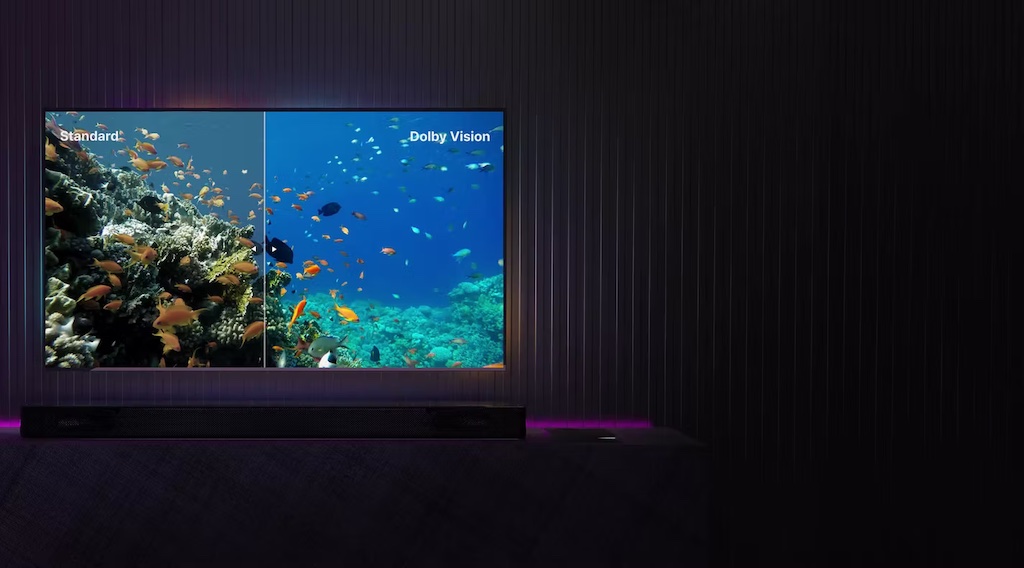
| HDR | HDR10, HDR10+, HLG, Dolby Vision |
| Audio | Dolby Atmos, DTS-HD via HDMI ARC |
| Network | Gigabit Ethernet + Wi-Fi 802.11ac dual-band |
| USB | 2× USB 3.0 |
| HDMI | 2.1 (4K@60fps, 8K@30fps) |
First Setup
Connect the Formuler Z12 via HDMI to your television. Connect the Ethernet cable (recommended) or configure Wi-Fi during the startup wizard. The box updates automatically on first launch — this update may take 3 to 8 minutes depending on your connection. Do not interrupt it.
Once the update is complete, the wizard asks you to configure the language, time zone, and resolution mode. Choose “Auto” for resolution — the Z12 will detect the maximum resolution supported by your TV.
Installing the MyTVOnline 2 App (MYTVO 2)
The Formuler Z12 comes with MyTVOnline 2 pre-installed — Formuler’s official app, optimized for their hardware. It offers an interface specifically designed for remotes, ultra-smooth category navigation, and an integrated EPG. It is the recommended app for using your IPTV subscription on this box.
- From the home screen, open “MyTVOnline 2”
- Press “Add Portal” or “New Portal”
- Enter the portal name (e.g., “My IPTV”), the server URL, your Xtream Codes username and password
- Confirm — the list loads in a few seconds
The MYTVO 2 interface offers three views: TV Channels, VOD Movies, Series. Categories appear in a column on the left. Remote navigation is intuitive: directional arrows to navigate, OK to confirm, Back to return.
Alternative: IPTV Smarters Pro on Formuler Z12
Since the Z12 runs Android 11, you can install any Android app, including IPTV Smarters Pro. Download the APK via the built-in browser or from the Play Store. The process for adding a playlist is identical to any other Android box (see our dedicated Smarters Pro guide). Advantage: same interface as all your other devices, multi-profile management, advanced subtitles.
4K HDR Settings: Enabling and Optimizing
To enjoy 4K HDR quality on the Formuler Z12, two conditions are needed: your TV must support 4K HDR (HDMI 2.0 minimum) and your provider must offer 4K streams. Once these conditions are met:
- Z12 Settings → Display → Resolution Mode: select “4K UHD 60Hz”
- Enable “Match Frame Rate” (automatic frame rate adaptation to match the content)
- HDR Mode: leave on “Auto” — the box switches between HDR10, HDR10+, and HLG based on the stream
- In MYTVO 2 or Smarters: enable the hardware decoder (HW) for H.265/HEVC decoding
Expected result: a 4K H.265 channel starts in under 2 seconds, HD channel switching in 0.8 to 1.2 seconds (measured on a 1 Gbps fiber connection via Ethernet cable).
Network Optimization for Unstable Connections
The Formuler Z12 has a Gigabit Ethernet port — use it. A wired connection offers 3 to 10 times lower latency than Wi-Fi and eliminates the throughput fluctuations typical of wireless. If a cable is not possible, configure Wi-Fi on the 5 GHz band (less congested than 2.4 GHz) and place the box within 15 feet of the router with no obstacles.
In the Z12’s network settings, you can configure a custom DNS. Replace your provider’s DNS with 1.1.1.1 (Cloudflare) or 8.8.8.8 (Google) to improve domain name resolution and reduce stream startup time.
Channel Management and Favorites Organization
With 50,000+ channels in your list, organizing by favorites is essential. In MYTVO 2, hold OK on a channel to access the “Add to Favorites” option. Create multiple themed favorites lists: Sports, Movies, News, Adult. Navigating a list of 50 favorites is infinitely faster than browsing through 50,000 channels.
The built-in search (magnifying glass key or dedicated button depending on the remote) lets you find a channel by name in seconds. On the Z12, input can be done via the on-screen virtual keyboard or via the Formuler Remote app on your smartphone (available on Android and iOS), which displays a physical keyboard.
Troubleshooting Common Issues
4K picture randomly drops to HD
Check that the HDMI cable is certified HDMI 2.0 or 2.1. HDMI 1.4 cables (often bundled with older TVs) do not support 4K@60fps. Replace the cable with a High Speed HDMI or Premium High Speed HDMI certified model.
MyTVOnline 2 slow or crashing
Clear the cache: Android Settings → Apps → MyTVOnline 2 → Clear Cache. If the issue persists, an app update may be available on the official Formuler site (formuler-store.com). Also check that the Z12 firmware is up to date via Settings → System Update.
Dolby Atmos audio not working
Dolby Atmos requires a soundbar or AV receiver compatible with HDMI ARC/eARC. Set the Z12 audio output to “Pass-through” (direct transmission) rather than internal decoding — your amplifier then handles native Atmos decoding. If your TV does not support ARC, the Dolby Atmos signal will be downgraded to stereo.
Z12 remote not recognized
The Formuler Z12 remote works via Bluetooth (not infrared). It must be paired on first use. If it stops responding, hold the Home and Back buttons simultaneously for 3 seconds to start Bluetooth re-pairing.
FAQ — Formuler Z12 and IPTV
Is the Formuler Z12 compatible with all IPTV subscriptions?
Yes, as long as the subscription supports Xtream Codes or M3U. All professional IPTV providers support these protocols.
What is the difference between MyTVOnline 2 and IPTV Smarters Pro on the Z12?
MYTVO 2 is optimized for Formuler hardware and offers the best remote control integration. Smarters Pro is more universal and useful if you manage multiple devices. Both apps support Xtream Codes, favorites, and EPG.
Can you record shows on the Formuler Z12?
Yes, with a USB drive or external hard drive plugged into one of the USB 3.0 ports. The recording feature is available in MYTVO 2 for live channels (depending on the rights granted by your provider).
Does the Formuler Z12 support Netflix and YouTube?
Yes, the Z12 runs Android 11 and supports all Android apps from the Play Store, including Netflix (Widevine L1 certified for HD/4K streaming), YouTube, Disney+, Prime Video, and all major SVoD apps.
Updating the Formuler Z12 Firmware
Formuler regularly publishes firmware updates that improve stability, add compatibility with new codecs, and fix navigation bugs in MyTVOnline 2. To check for and install an update: Settings → System Update → Check for Update. If an update is available, the box downloads and installs it automatically — keep it plugged in and connected to the internet during the process (5 to 15 minutes).
Only install updates over a wired Ethernet connection — a Wi-Fi dropout during installation can corrupt the firmware. If the Z12 gets stuck after an interrupted update, the recovery mode procedure is documented on the official formuler-store.com website.
Connecting the Formuler Z12 to a Soundbar or Amplifier
The Z12 has an HDMI 2.1 output with ARC (Audio Return Channel) and eARC (Enhanced ARC) support. To connect a soundbar or AV receiver: plug the Z12’s HDMI cable into your TV’s HDMI ARC port, then connect the TV to your soundbar via HDMI eARC or optical. Enable CEC (HDMI Control) on the TV so the Z12 can control the soundbar volume via the Formuler remote.
For Dolby Atmos: in the Z12’s audio settings, select “Pass-through” (transmission without decoding). Your Dolby Atmos-certified amplifier or soundbar then decodes the signal directly. Verify that your HDMI cable supports eARC (certified HDMI 2.1 Ultra High Speed cable) — HDMI 1.4 cables do not correctly transmit Atmos audio.
Recording to USB Drive or Hard Disk
The Formuler Z12’s USB 3.0 ports allow connecting a USB drive or external hard disk to record live shows. In MyTVOnline 2, a long press on a channel displays recording options. Recording requires that your IPTV provider enables this feature (not all providers do). The storage device must be formatted as NTFS or exFAT for large files. A USB 3.0 SSD is recommended over a mechanical hard drive to avoid slow write speeds that could cause gaps in recordings.
Formuler Z12 vs Nvidia Shield: Which Box for IPTV?
The Formuler Z12 and the Nvidia Shield Pro are the two top-tier boxes most recommended for IPTV. Their key differences:
| Criterion | Formuler Z12 | Nvidia Shield Pro |
|---|---|---|
| Dedicated IPTV app | MyTVOnline 2 (Formuler-optimized) | None — uses Smarters/TiviMate |
| Remote IPTV navigation | Excellent (built for it) | Good |
| CPU/GPU power | Amlogic S922X octa-core | Tegra X1+ — slightly superior |
| Multitasking (Plex, gaming) | Limited to IPTV | Excellent (Plex Server, GeForce Now) |
| Price | ~$165 | ~$220 |
| Long-term firmware updates | Regular since 2021 | Since 2015 — absolute record |
For exclusively IPTV use, the Formuler Z12 is the best choice. For a versatile box (IPTV + Plex media center + gaming), the Nvidia Shield Pro justifies its higher price.
Additional FAQ — Formuler Z12
Does the Formuler Z12 require a Google account?
No. MyTVOnline 2 works without a Google account. However, to install additional Android apps from the Play Store (Smarters, Netflix, YouTube), a Google account is required. Pure IPTV via MyTVOnline 2 only requires your IPTV provider credentials.
Does the Formuler Z12 use a lot of electricity?
Power consumption during active playback: approximately 8 to 12 W. In standby: under 1 W. Well below a television (100 to 300 W). Over a year of use (4 hours per day), the additional consumption is approximately 15 to 18 kWh — less than $3 on a standard electricity bill.

Leave a comment
Your email address will not be published. Required fields are marked with *.