
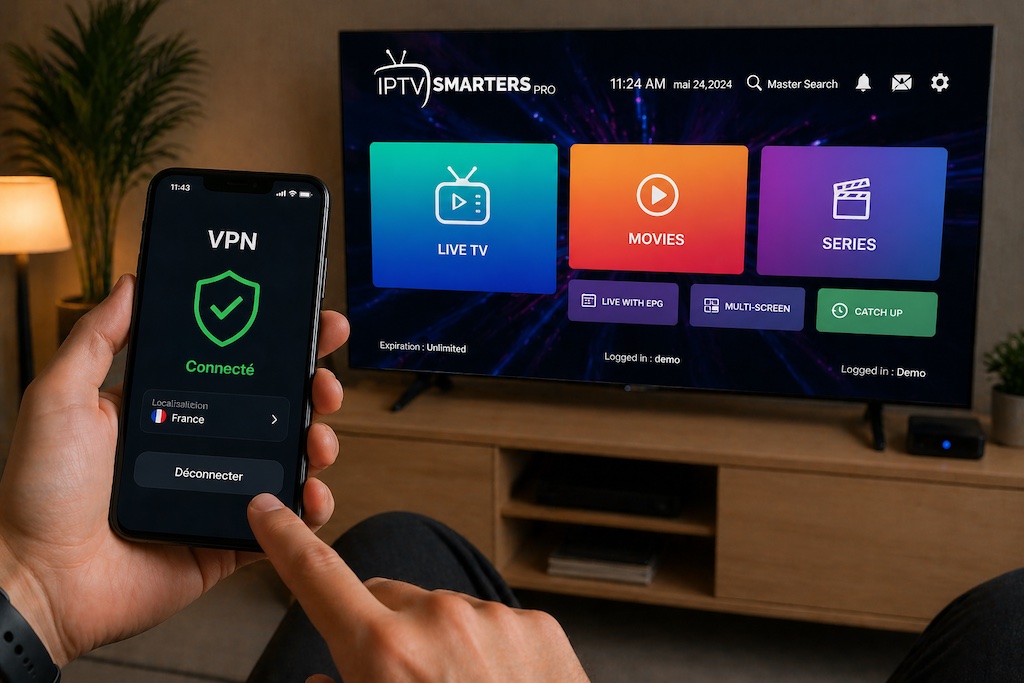
IPTV Smarters Pro has established itself as the reference IPTV player on Android, iOS, Windows, and Smart TV. Its clean interface, compatibility with all playlist formats (M3U, Xtream Codes, multi-portal), and advanced customization options make it the dominant choice among IPTV subscribers. This guide covers complete installation, video and network settings configuration, and troubleshooting the most common issues.
Download and Install IPTV Smarters Pro
On Android TV and Fire Stick
On Fire Stick, first enable installation from unknown sources in Settings → My Fire TV → Developer Options → Apps from Unknown Sources. Then download the APK via the Silk browser or via the Downloader app (search “IPTV Smarters Pro” on the Play Store if your device has access, otherwise use the direct URL provided by your provider). On native Android TV (Xiaomi Mi Box, Nvidia Shield), the Play Store offers the official version directly.
On iPhone and iPad (iOS)
Search “IPTV Smarters Pro” in the App Store. The app is paid on iOS (approximately $6.99). Make sure to download the version by Whmcs Smarters, not a fraudulent copy. Once installed, the process for adding a playlist is identical to Android.
On Windows (PC and Laptop)
The Windows version installs like a standard program. Download the .exe file from the official Smarters website, run the installer, and add your playlist exactly as you would on Android. Performance is generally excellent on PC thanks to available hardware resources.
Adding Your IPTV Playlist: 2 Methods
Method 1 — Xtream Codes Connection (Recommended)
Xtream Codes is the native protocol used by virtually all professional IPTV providers. It enables category-based navigation, paginated list loading (no waiting for 50,000 channels), and automatic catalog updates. To connect:
- Open IPTV Smarters Pro → “Add User”
- Select “Login with Xtream Codes API”
- Enter the server URL (e.g.,
http://server.example.com:8080), your username, and your password - Tap “Add User” — the list loads automatically
Your IPTV provider sends you these three pieces of information in the subscription confirmation email. If you have lost that email, contact support: they can regenerate your credentials within minutes.
Method 2 — M3U URL
Some subscriptions provide only an M3U URL (direct link to the playlist). Choose “Login with M3U URL” in Smarters and paste the full URL. Drawback: initial loading may take 2 to 5 minutes if the list contains more than 40,000 channels, and category navigation is less smooth than with Xtream Codes.
Video and Buffer Settings: Optimal Configuration
The default settings in IPTV Smarters Pro work for most fiber connections. On DSL, 4G, or an unstable Wi-Fi network, adjust the following settings to eliminate buffering:
| Setting | Default Value | Recommended for Fiber 1 Gbps | Recommended for DSL / 4G |
|---|---|---|---|
| Buffer size (ms) | 1,000 | 500 | 3,000 |
| Auto-reconnect | Disabled | Enabled | Enabled |
| Hardware decoder (HW) | Automatic | HW (Hardware) | SW (Software) |
| Auto max quality | Enabled | Enabled | Disabled (cap at 720p) |
| Protocol | Auto | HLS or TS | HLS |
To access settings: tap the gear icon at the top right on the main screen → “Settings”. Adjust settings for your connection, save, and restart a channel playback to validate.
Hardware Decoder vs Software Decoder: What Is the Difference?
The hardware decoder (HW) offloads video decoding to the device’s graphics processor. Faster and more energy-efficient, it is ideal for 4K H.265 (HEVC) streams. However, some older devices or poorly encoded streams may produce a green image or artifacts with HW. In that case, switch to SW (software): the CPU handles decoding, compatibility is maximized but CPU usage increases.
Enabling and Configuring the EPG (Program Guide)
The EPG displays current and upcoming programs for each channel, directly within Smarters. To enable it:
- Go to Settings → EPG
- If your Xtream Codes connection includes EPG, check “Load EPG from Server” — no additional configuration needed
- If your provider gives you a separate EPG URL (XMLTV format), paste it in the “External EPG URL” field
- Set auto-update to every 12 or 24 hours
Once the EPG is loaded, long-press a channel to see its 7-day schedule. The “Catch-up” (replay) function appears if your provider offers it: a clock icon indicates shows available for replay.
Managing Multiple Profiles and Subscriptions
IPTV Smarters Pro supports multiple user profiles on the same device. Useful if you have two different subscriptions or if multiple household members have different channel preferences. On the home screen, tap the profile icon at the top left to switch between accounts. Each profile keeps its own favorites, history, and playback settings.
Optimizing Smarters on Android TV (Nvidia Shield, Xiaomi)
On premium Android TV boxes like the Nvidia Shield, IPTV Smarters can be configured for an optimal 4K HDR experience. In the box settings (not Smarters), set the HDMI output to “Auto (4K HDR)” rather than a fixed resolution. Smarters will automatically detect the maximum stream resolution and adapt the output. For Dolby Vision, you need a compatible device and a Dolby Vision-encoded stream — most IPTV providers use HDR10 or HLG, not Dolby Vision.
Also enable “Always on Top” mode in the Android TV launcher settings so Smarters starts in the foreground when the box boots. Convenient for a familiar TV experience without navigating complex remote menus.
Troubleshooting Common Issues
Black screen or frozen picture when launching a channel
Most common cause: hardware decoder incompatible with the stream’s codec. Solution: Settings → Player → switch from HW to SW. If the issue persists, verify that the URL or Xtream Codes credentials are correct (a channel may be temporarily down on the server side).
Buffering every 30 to 60 seconds
Classic symptom of a buffer that is too small or an unstable connection. Increase buffer size to 3,000 ms in Settings. If you are on Wi-Fi, test with a wired connection (Ethernet cable): a wired connection eliminates 90% of unexplained buffering. Also check that no one on your network is downloading in the background — a 4K H.265 IPTV stream consumes between 15 and 25 Mbps.
“Invalid credentials” error or empty list
Check that the server URL does not contain stray spaces and that it includes the port (e.g., :8080). Copy and paste rather than typing manually. If the error persists, contact your provider: your subscription may have expired or your connection may have reached the simultaneous connection limit.
App crashes on launch
Clear the app cache: Android Settings → Apps → IPTV Smarters Pro → Storage → Clear Cache. If the crash persists, uninstall and reinstall the app. Your playlists are stored server-side (Xtream Codes) or in an external M3U file: you will lose no data by reinstalling.
Advanced Features to Know
Subtitles and audio tracks: During playback, tap the screen to display controls, then tap the subtitle icon. Multi-language streams (typically pan-regional channels) offer multiple audio tracks: original version, dubbed, with subtitles.
Favorites and custom lists: Long-press a channel → “Add to Favorites”. This creates a personal list accessible from the Favorites tab, independent of your provider’s category structure.
Parental controls: Settings → PIN Protection. You can lock certain categories or access to settings to prevent accidental changes by other users of the device.
FAQ — Frequently Asked Questions
Is IPTV Smarters Pro free?
Free on Android (Play Store and APK). Paid on iOS (approximately $6.99 one-time purchase). On Windows, a trial version is available; the full version requires a purchase.
How many devices can be connected simultaneously?
The number of simultaneous connections depends on your IPTV subscription, not the app. A 1-screen subscription allows 1 connection at a time; a 2-screen subscription allows 2, and so on. Smarters itself does not limit the number of installations.
Does the app work with all IPTV providers?
Yes, as long as your provider supports Xtream Codes API or provides an M3U URL. Virtually all serious IPTV providers support one or both protocols.
Is 4K quality available in Smarters?
Yes, if your provider offers 4K streams and your device is compatible (Nvidia Shield, Apple TV 4K, Formuler Z12, recent 4K TV). Enable the hardware decoder and make sure your connection has at least 25 Mbps stable.
How do I update the app?
On Android, via the Play Store (automatic updates if enabled) or by downloading the new APK. Updates fix compatibility bugs with new Android versions and add features. Check the installed version in About the App.
Can Smarters be used on a Samsung or LG Smart TV?
Samsung Tizen and LG WebOS do not support Android APKs. On these TVs, use an external Android TV box (Fire Stick, Chromecast with Google TV, Nvidia Shield) connected via HDMI. Some providers offer a specific Tizen or WebOS app — check with your support.
Smarters Pro vs TiviMate: Which Player to Choose on Android TV?
TiviMate is often cited as the superior alternative to IPTV Smarters Pro on Android TV boxes. Both apps support Xtream Codes and M3U, but their philosophies differ. TiviMate offers an interface designed specifically for large TV screens with more intuitive remote navigation and a visually richer program guide (EPG). IPTV Smarters Pro, on the other hand, is available on more platforms (iOS, Windows, Fire OS) and offers more complete multi-profile management.
On a Formuler Z12 or Nvidia Shield, TiviMate generally delivers a smoother TV experience thanks to its Android TV-optimized interface. On Fire Stick or iOS devices, Smarters Pro is the default choice because TiviMate is not available on those platforms. If you manage multiple device types in your household, Smarters Pro simplifies configuration since you use a single app everywhere.
Automatic Channel List Updates
With an Xtream Codes connection, the channel list updates automatically each time the app starts. New channels added by your provider appear without any action needed. Removed channels disappear cleanly. This is one of the major advantages of Xtream Codes over M3U — a static M3U URL stays unchanged until your provider sends a new link, while Xtream Codes syncs automatically.
To force a manual list refresh in Smarters Pro: on the main screen, pull down (swipe down) or use the “Refresh Playlist” option in your profile menu. This operation takes 5 to 30 seconds depending on the size of your catalog.
Using IPTV Smarters Pro Without Wi-Fi (On Mobile Data)
IPTV Smarters Pro does not offer offline downloading for VOD content — streaming requires an active connection. While traveling, use your mobile data (4G or 5G): the app works exactly the same as on Wi-Fi. Reduce the auto quality to 720p in settings to save your data plan — a 720p H.264 stream consumes approximately 3 to 5 Mbps, or about 1 GB per hour of viewing.
Security and Privacy with IPTV Smarters Pro
Your Xtream Codes credentials (server URL, login, password) are stored locally in the app on your device. Smarters Pro does not share this data with third parties. However, your streaming activity is visible to your IPTV provider (who sees which channels are watched) and potentially to your internet service provider (who sees HTTP/HTTPS connections to the IPTV server). For maximum privacy, some users add a VPN between their network and the IPTV server — verify that the VPN does not introduce excessive latency (ideally under 20 ms additional) to avoid degrading streaming quality.
Configuring Subtitles and Multilingual Audio
During playback in Smarters Pro, tap the screen to display playback controls, then tap the CC icon (subtitles) or the music icon (audio tracks). Multi-language channels (typically pan-regional sports channels, Euronews) offer multiple tracks: choose the original version, dubbed version, or preferred language. For VOD movies, subtitles are available if your provider includes them in the stream — SRT format or embedded. This feature depends entirely on the content provided by your provider.

Leave a comment
Your email address will not be published. Required fields are marked with *.