
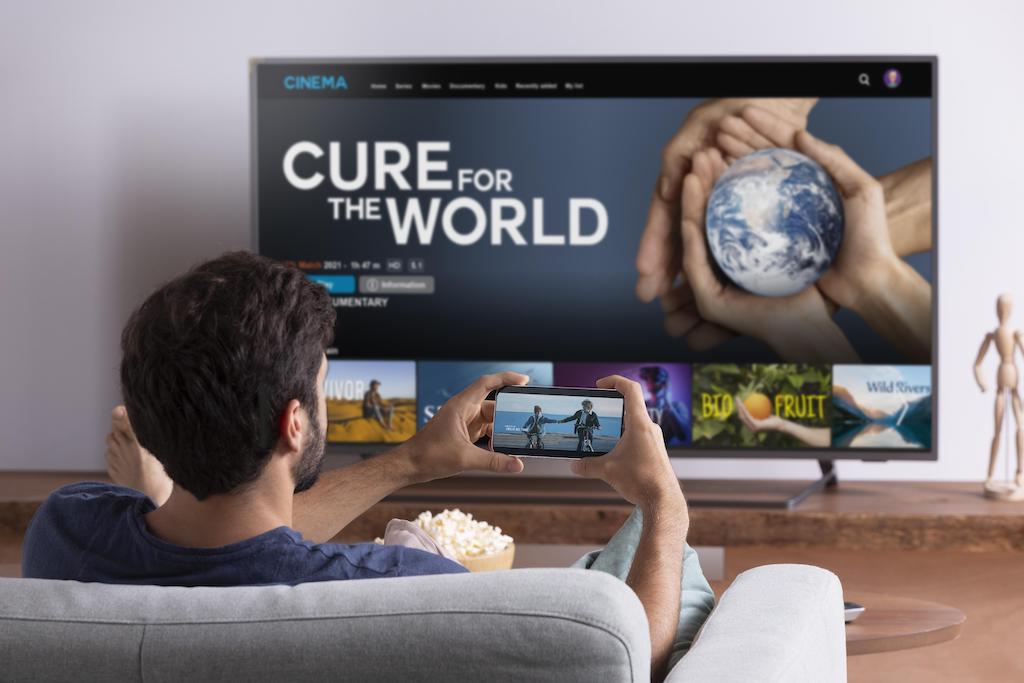
A multi-screen IPTV subscription lets you watch simultaneously on 2, 3, or 4 devices with a single account. It is the ideal solution for families or households where each person wants to watch a different channel. This guide explains how to choose the right multi-screen subscription, which devices to connect, and how to configure each screen for an optimal experience.
How Does a Multi-Screen IPTV Subscription Work?
A standard IPTV subscription allows only one simultaneous connection. As soon as a second device attempts to connect with the same credentials, the first is disconnected. A 2-screen subscription authorizes 2 simultaneous and independent connections on the same account. Each connection can watch a different channel, access different VOD content, without conflict.
Technically, the IPTV server monitors the number of active sessions per account. When the limit is reached, any new connection attempt is rejected or the oldest connection is interrupted, depending on the server configuration. Choose a subscription whose screen count exactly matches your needs — a 2-screen subscription typically costs $2 to $3 more per month than a 1-screen subscription.
Comparison: 1, 2, 3, and 4-Screen Subscriptions
| Type | Simultaneous Connections | Ideal For | Required Bandwidth |
|---|---|---|---|
| 1 screen | 1 | Single person, 1 TV | 15–25 Mbps (4K) / 5–10 Mbps (HD) |
| 2 screens | 2 | Couple, 2 TVs or TV + smartphone | 30–50 Mbps |
| 3 screens | 3 | Family of 3 | 45–75 Mbps |
| 4 screens | 4 | Large family, shared | 60–100 Mbps |
These values assume each connection is watching a 4K H.265 stream. For HD (1080p), divide by 3: an HD H.264 stream consumes approximately 5 to 8 Mbps. A 100 Mbps fiber connection is more than enough for 4 simultaneous HD screens.
Which Devices to Connect in Multi-Screen?
The flexibility of multi-screen IPTV subscriptions is their main advantage: you are not limited to one type of device. Each connection can be on a different device:
- Main TV: Android TV box (Formuler Z12, Nvidia Shield, Xiaomi Mi Box S), Fire Stick, Chromecast with Google TV, or compatible Smart TV (via IPTV Smarters)
- Second TV: same options, or an older TV connected via Android box
- Android smartphone:IPTV Smarters Pro, TiviMate, or GSE Smart IPTV
- iPhone / iPad: IPTV Smarters Pro or GSE Smart IPTV (App Store)
- Windows PC / Mac: IPTV Smarters Pro Desktop or VLC with M3U URL
- Tablet: same apps as smartphone
Each device connects with the same Xtream Codes credentials. You can configure Smarters on your phone and TiviMate on your Android TV box with the same account — as long as you do not exceed the number of authorized simultaneous connections.
Practical Setup: Main TV + Smartphone
The most common use case is a main TV (Android box or Fire Stick) and a smartphone for watching in another room or on the go. Here is how to set it up:
On the TV (IPTV Smarters Pro)
- Install IPTV Smarters Pro on your box
- Add your account via Xtream Codes (server URL + username + password)
- Configure buffer settings: 500 ms for fiber, 2,000 ms for DSL
- Create your favorites lists for quick access to frequently watched channels
On Smartphone (same account)
- Install IPTV Smarters Pro (Android) or GSE Smart IPTV (iOS)
- Add the same Xtream Codes account used on the TV
- Enable battery saver mode in Smarters settings when watching on the go
- On mobile data (4G/5G), reduce the auto quality to 720p to save your data plan
Home Network: Optimizing Wi-Fi for Multiple Devices
With multiple IPTV devices active simultaneously, the Wi-Fi network can become the bottleneck. A few basic rules:
Ethernet cable for the main TV: connect the main TV box via wired connection. Ethernet eliminates Wi-Fi variability and guarantees 4K quality even when other devices are consuming bandwidth simultaneously.
5 GHz band for devices close to the router: the 5 GHz band offers higher speeds (up to 1.3 Gbps theoretical on Wi-Fi 5) but reduced range. Devices in the same room as the router use 5 GHz; devices in other rooms use 2.4 GHz or a Wi-Fi extender.
QoS (Quality of Service) on your router: if your router supports QoS, prioritize traffic from the IP addresses of your IPTV boxes. This ensures IPTV streaming is not penalized if someone is downloading simultaneously.
Multi-Screen-Specific Issues
One screen disconnects when the second connects
Cause: your subscription is limited to 1 simultaneous connection, not 2. The server disconnects the first session to allow the new one. Solution: contact your provider to upgrade to a 2-screen subscription.
Buffering on one device while others are also watching
Your available bandwidth may be insufficient for N simultaneous streams. Test your connection speed (speedtest.net) and compare with requirements: N × 15 Mbps for 4K streams, N × 5 Mbps for HD. If your speed is sufficient, the problem is Wi-Fi (radio band congestion) — switch the problematic device to wired or to the 5 GHz band.
“Connection limit reached” error
This error appears when all connection slots are occupied. Check that no forgotten device (unused tablet, old PC installation) is connected in the background. In Smarters, close the app on all devices you are not actively using (disconnection is immediate).
FAQ — Multi-Screen IPTV
Can you watch two different channels with a 2-screen subscription?
Yes, that is precisely the point. Each connection is completely independent — device A can watch a soccer match while device B watches a VOD movie.
Does a 2-screen subscription cost twice as much as a 1-screen subscription?
No, generally 20 to 40% more. The pricing reflects the additional server load, not a doubling of costs. See our pricing page for details.
Do multi-screen subscriptions work abroad?
Yes, as long as simultaneous connections do not exceed the authorized number. You can use one screen in the US and another simultaneously in Canada or the UK without any issue.
Which IPTV app is best for multi-screen?
IPTV Smarters Pro is available on Android, iOS, Windows, and some TV boxes — one app for all your devices. TiviMate is an excellent alternative on Android TV, with a more modern interface. Both support the same Xtream Codes account across multiple devices.
Can you share a subscription with people at different addresses?
Technically possible but depends on your provider’s terms of service. Some providers tolerate different IP addresses; others restrict to a single home network. Check with your provider before sharing.
Practical Scenario: 3 Simultaneous Devices in One Household
Imagine a three-person household with a 3-screen subscription. Saturday night: Device 1 (living room, Formuler Z12) watches a live soccer match. Device 2 (bedroom, Fire Stick 4K) watches a VOD movie. Device 3 (iPhone) watches a series from bed. The three connections are independent — each person controls their own player, subtitles, and volume. The IPTV server handles three parallel sessions on the same account without interference.
This scenario works as long as the household’s internet connection has approximately 45 Mbps of available download bandwidth (3 × 15 Mbps for 4K H.265). On a 200 Mbps or faster fiber connection, no problem even if other household members are browsing the internet or watching SVoD streaming simultaneously.
Configuring TiviMate for Multi-Screen IPTV
TiviMate, available on Android TV, offers a visually superior interface to IPTV Smarters Pro for large screens. For a multi-screen subscription across multiple Android TV boxes:
- Install TiviMate from the Play Store on each Android TV box
- On each box: Add playlist → Xtream Codes
- Enter the same credentials (server URL, login, password) on each device
- Each box maintains its own local favorites and playback settings
Note that TiviMate Premium (annual subscription of approximately $5) is required for certain advanced features such as multiple playlists or recording. The free version is sufficient for basic multi-device playback.
Multi-Screen IPTV While Traveling
A multi-screen subscription is particularly useful for families who travel. Your IPTV subscription works from any internet connection anywhere in the world — hotel, vacation rental, café Wi-Fi. Convenient for maintaining access to your home country channels during a stay in Europe or elsewhere.
While traveling, the smartphone or tablet app (IPTV Smarters Pro) is the most practical — no need to bring a box. Connect to your accommodation’s Wi-Fi, launch Smarters, and access your full channel catalog in seconds.
Managing Your Multi-Screen Account: Best Practices
To avoid unexpected disconnections and maximize the reliability of your multi-screen subscription:
Close the app when you are not watching. An IPTV app left running in the background may maintain an active server connection, occupying a slot unnecessarily. On Android, force-stopping the app immediately frees the connection.
Avoid installing Smarters on forgotten devices. An old tablet configured with your account and connected to Wi-Fi can permanently consume a connection slot. Uninstall the app from devices you no longer use regularly.
Contact your provider if you get unexpected limit errors. If you receive a “limit reached” error when you think only one screen is active, your provider can see the number of active sessions and identify whether a ghost session is open.
Multi-Screen Subscription vs. Multiple Separate Subscriptions
Some users wonder whether it is better to get a 2-screen subscription or two separate subscriptions. The answer is almost always the multi-screen subscription: cheaper (20 to 50% savings on the total), one account to manage, one renewal to track, and both connections share the same catalog (same channels, same VOD movies, same EPG). A separate subscription only makes sense if the two people have very different needs (different catalogs, different providers).
Disclosure: outbound links to IPTV Smarters Player, TiviMate point to the vendors' official websites. We receive no affiliate compensation for these mentions; they help you download the original app and avoid unofficial copies.

Leave a comment
Your email address will not be published. Required fields are marked with *.