
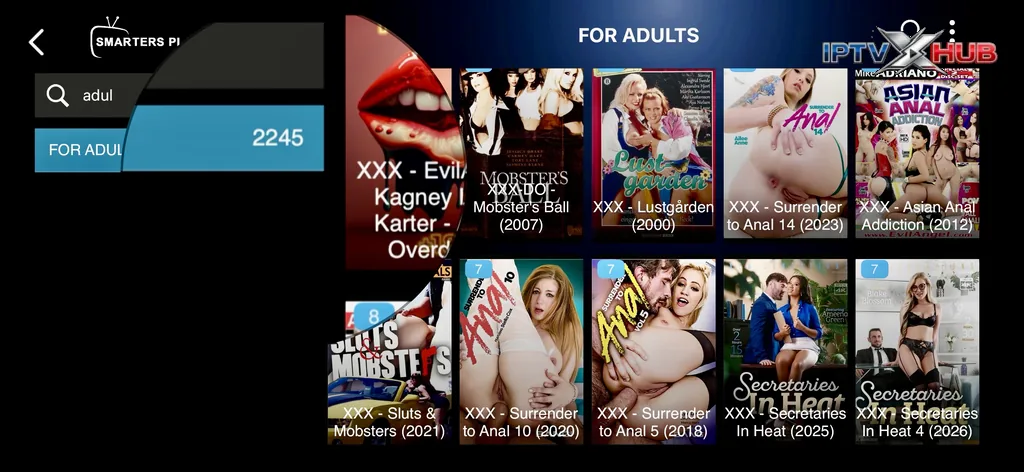
Looking to install IPTV Smarters Pro on your LG webOS TV? This guide walks you through every step, from opening the LG Content Store to configuring your IPTV subscription. Whether you want to watch live TV, movies, or adult VOD content, this guide covers it all with practical tips and screenshots.
1. Open the LG Content Store
To install any app on your LG TV, you must use the LG Content Store. This is the official app store for webOS, pre-installed on all LG smart TVs. It’s the only place where you can download apps like IPTV Smarters Pro.[citation:4]
Make sure your TV is connected to the Internet and logged into your LG account before you start.
1.1. The webOS Launcher
The horizontal bar at the bottom of your screen is the webOS Launcher. It gives you quick access to your recently used apps, HDMI inputs, and the Content Store. The icon we need is “Apps”.[citation:9]
1.1.1. The Magic Remote
The Magic Remote is standard on most LG TVs since 2018. It works like a mouse pointer, making navigation easy. The key buttons for this guide are:
- The “Home” button (house icon)
- The directional pad for navigation
- The “OK” button to confirm selections
If you have an older remote without the pointer, the steps are the same.
Press the Home button
Press the Home button (the house icon) on your remote. This takes you to the home screen, no matter what you were watching.
The Launcher appears at the bottom
After pressing Home, the Launcher appears at the bottom of the screen. Use the directional arrows to scroll through the icons until you find “Apps”.
Navigate to the “Apps” icon
The “Apps” icon opens the Content Store. Once highlighted, press “OK” to open it.
Expert Note: App availability varies by region. If you can’t find IPTV Smarters Pro, try updating your TV firmware or searching for “IPTV” or “Smarters” instead of the full name.[citation:9]
— Expert Tip
2. Understanding the Content Store
Once you open the Content Store, you’ll see categories like Featured, Entertainment, Game, News & Info, and Education. Most IPTV apps are found under Entertainment.
2.1. The Store Home Screen
The home screen shows promotional banners, trending apps, and recent inputs. Don’t get distracted by these — we need to search for the app.
2.1.1. Top categories
Categories like Games, Music, Home, YouTube, Kids, and Prime Video are shortcuts. For IPTV apps, the “Entertainment” tab is the most relevant.
“Trending now” section
“Trending now” shows popular apps in your region. IPTV Smarters Pro may appear here, but searching is more reliable.
2.2. The “Apps” screen
This is the main app store view. It includes a search bar, category tabs, and sections for recommended, popular, and recently updated apps.
2.2.1. Category tabs
Use the tabs to filter apps. “Entertainment” is where you’ll find IPTV players, including IPTV Smarters Pro.
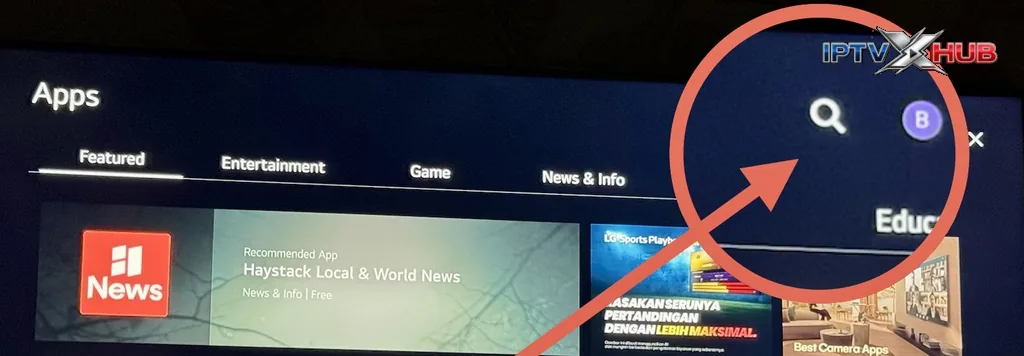
3. Search for “IPTV”
The search bar is the fastest way to find IPTV Smarters Pro. Simply type “IPTV” and the store will show all matching apps.[citation:4]
Ensure your TV is connected to the Internet before searching.
3.1. Using the search bar
Find the magnifying glass icon in the top-left corner. Select it with your remote, and the virtual keyboard will appear.
3.1.1. Type: i-p-t-v
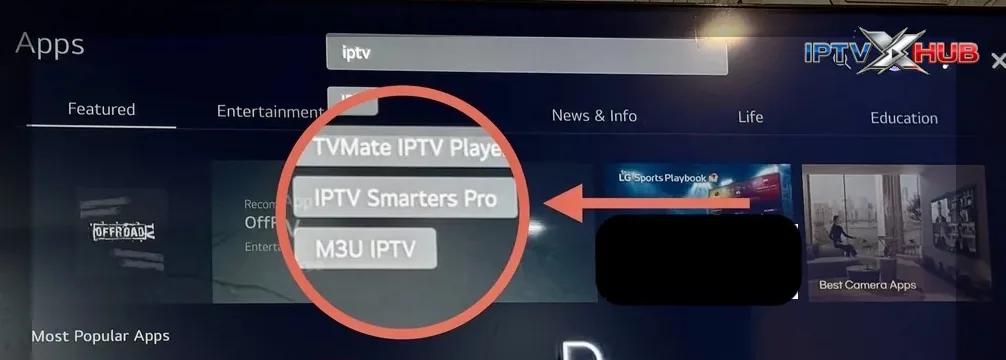
Use the virtual keyboard to type “iptv”. The results appear instantly as you type.
Results appear instantly
The search results will show IPTV Smarters Pro along with other IPTV apps. Look for the one with the correct name and icon.[citation:9]
You will see: TVMate, IPTV Smarters Pro, M3U IPTV, Recon
These are the most common IPTV players on LG webOS. IPTV Smarters Pro is the most feature-rich and recommended for adult VOD content.
4. Identify IPTV Smarters Pro
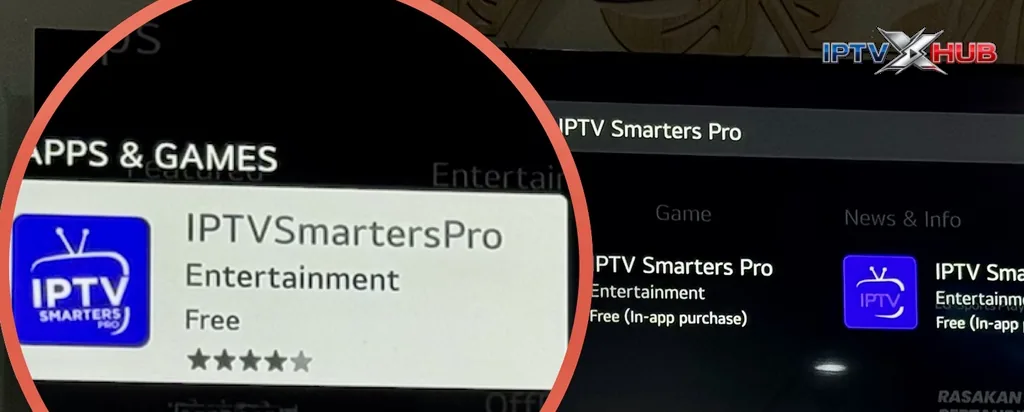
Make sure you select the right app. IPTV Smarters Pro is distinctive with its blue or orange icon featuring a TV screen with signal patterns.
4.1. Icon and name
Look for “IPTV Smarters Pro” (with an “s” in Smarters). Avoid confusing it with “IPTV Smarters” (without Pro) or “IPTV Smarter Player”.
- Exact name: “IPTV Smarters Pro”
- Icon: TV screen with signals, blue/orange background
- Developer: “WHMCS Smart” or “Smarters Tech Solutions LLC”[citation:1][citation:5]
- Badge: “Free” or “Premium”
4.1.1. Age rating
IPTV Smarters Pro has an age rating of 16+ or 4+ depending on the version. The app itself contains no content — it’s just a player. You control what you watch.[citation:1][citation:5]
Found in “Recommended” section
In the screenshots, IPTV Smarters Pro appears in the “Recommended” section, indicating it’s a trusted app.
Badge: Free or Premium
The app is available in both Free and Premium versions. The Free version works well for most users.
4.2. Comparison table
| App | EPG | Multi-accounts | Premium | Free |
|---|---|---|---|---|
| IPTV Smarters Pro | Yes | Yes | Yes | Yes |
| TVMate | Yes | No | No | Yes |
| M3U IPTV | No | No | No | Yes |
| Recon | Limited | No | No | Yes |
5. Install IPTV Smarters Pro
Once you’ve found the correct app, installation takes just a few seconds. Select the app and click “Install”.[citation:4]
5.1. Click on the app icon
Navigate to the app, press “OK” to open its description page, and then click “Install”.
5.1.1. Description page
Read the description to confirm it’s the correct app. You’ll find the “Install” button on this page.
Click “Install”
Press the “Install” button to start the download. A progress bar will appear.[citation:9]
Accept permissions
If prompted, accept the permissions. The app needs access to storage and network to work properly.
5.2. Wait for installation
The download and installation take less than a minute. Once complete, a confirmation message appears.
5.2.1. Icon appears in Launcher
The app icon appears in your Launcher. You can now open it from the home screen.
6. Launch IPTV Smarters Pro
Now that the app is installed, it’s time to launch it and configure your IPTV subscription.
6.1. Launch from the home screen
Navigate to the IPTV Smarters Pro icon in the Launcher and press “OK”.
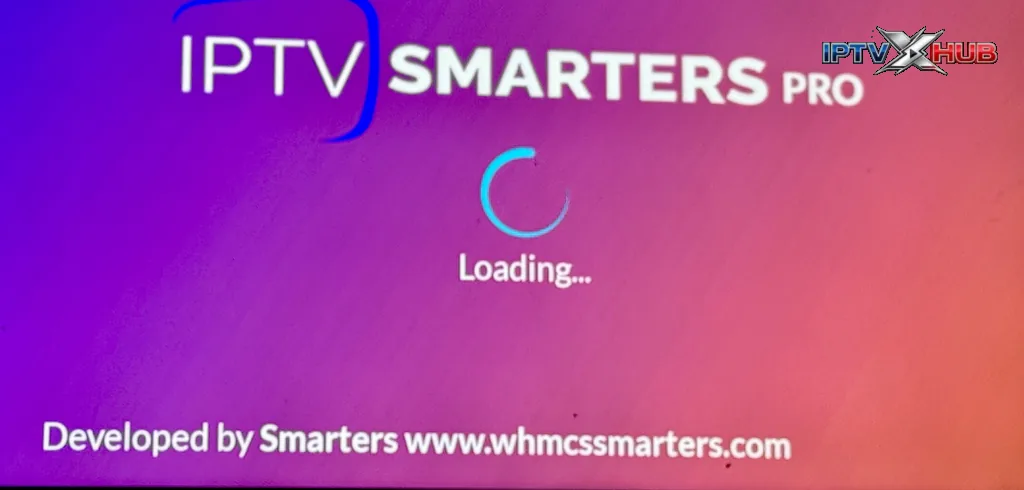
6.1.1. Loading screen
The loading screen appears with the app logo and developer information. The Premium badge will show if you have the paid version.
Configuration screen
On first launch, the app shows a configuration screen. You’ll need to add your IPTV credentials. IPTV Smarters Pro supports both Xtream Codes API and M3U playlist URL methods.[citation:9][citation:8]
- Xtream Codes – Enter server URL, username, and password
- M3U URL – Paste your provider’s playlist link
With adult VOD content, you’ll get access to a wide selection of mature movies and series. The app itself contains no content — your IPTV provider supplies it.
Enter credentials and validate
Enter your credentials and click “Connect”. The app will load your channels and organize them by category. The first sync can take a few minutes, especially with large playlists.[citation:9]
6.2. Main interface
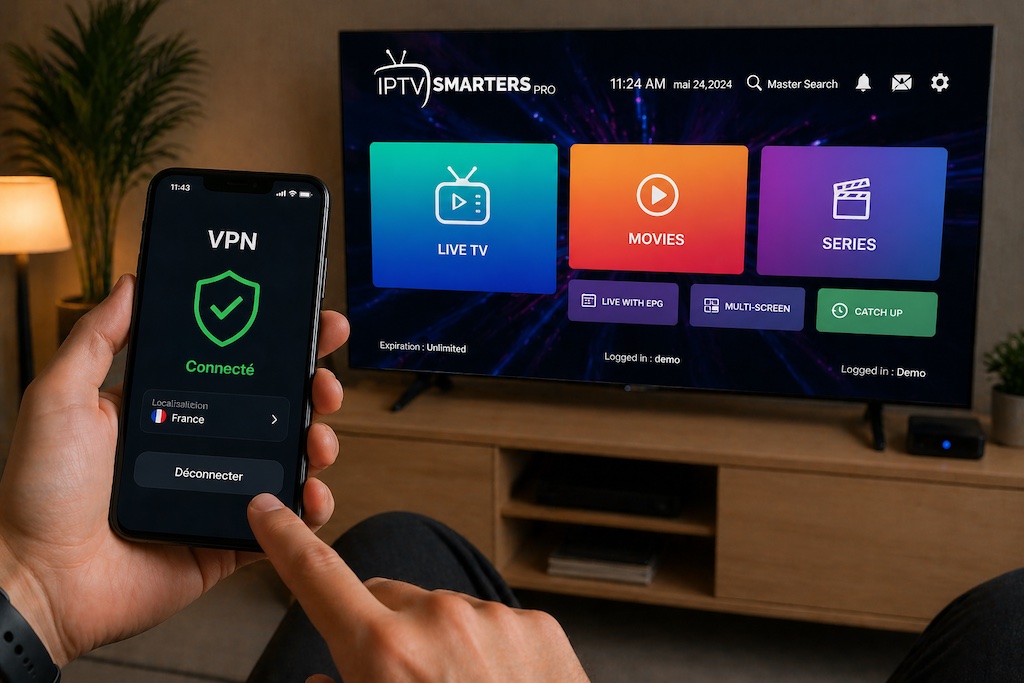
Once connected, the main interface appears with all your content.
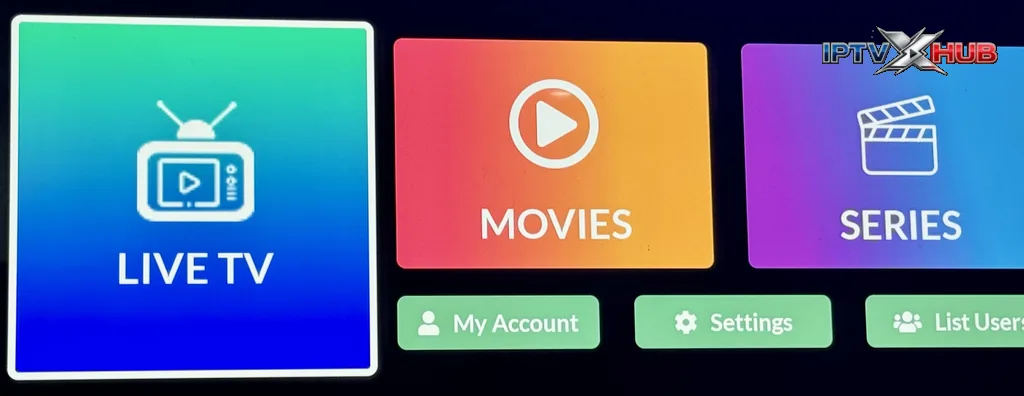
The interface includes:
- LIVE TV – All your channels by category
- MOVIES – Movie catalog, including adult VOD (if included)
- SERIES – Series catalog (if included)
- My Account – Account and subscription info
- Settings – Video quality, EPG, and preferences
- List User – Multi-account management
The screen also shows your account info, expiration date, and Premium status.
6.2.1. Start watching adult VOD
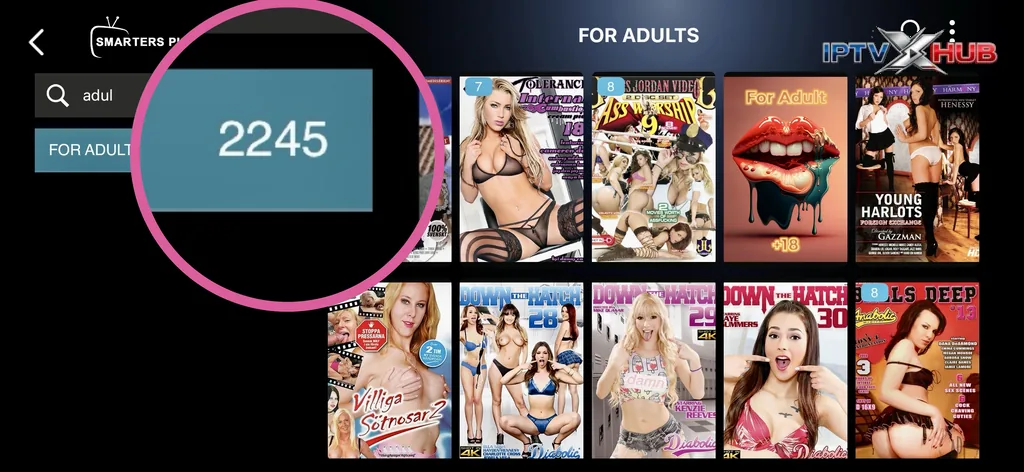
Select MOVIES or SERIES to browse adult VOD content. Navigate with the directional pad, select a title, and press “OK” to start watching. Enjoy HD, SD, or 4K content depending on your subscription.
7. Parental controls for adult content
IPTV Smarters Pro includes built-in parental controls to restrict access to adult VOD content. This is useful if you share your TV with family members or want to block mature content for children.[citation:10][citation:2][citation:6]
Expert Note: IPTV Smarters Pro lets you set a 4-digit PIN code to lock adult categories. Once locked, these channels won’t appear unless the PIN is entered.[citation:2]
— Expert Tip
7.1. How to set up parental controls
- Open Settings (gear icon) in IPTV Smarters Pro
- Select Parental Control from the menu
- Create a 4-digit PIN
- Toggle off access to Adult or mature content categories
- Press Save to activate
Once locked, adult VOD content will be hidden until the PIN is entered.[citation:2][citation:6]
8. Troubleshooting common issues
Here are solutions to common problems you might encounter.
8.1. App not found in search
Expert Note: IPTV apps may be restricted in some regions. Try updating your TV firmware, searching for “IPTV” or “Smarters” instead of the full name, or using a VPN.[citation:9]
— Expert Tip
8.1.1. Solutions
- Check Internet connection
- Restart your TV
- Update TV firmware[citation:9]
- Search using shorter terms
8.2. Installation error
Expert Note: LG TVs have limited storage. Clear cache or uninstall unused apps to free up space.
— Expert Tip
8.2.1. Solutions
- Delete unused apps
- Clear app cache
- Restart TV
- Update firmware
8.3. Channels not loading
Expert Note: 4K/UHD streams require stable internet. Check your credentials — even a single typo can prevent connection.[citation:8]
— Expert Tip
8.3.1. Solutions
- Check Internet speed
- Verify Xtream Codes or M3U URL[citation:8]
- Restart app and TV
- Contact your IPTV provider
8.4. EPG not showing
Expert Note: EPG requires specific tags in your M3U file or a separate EPG URL. Add one manually in settings if needed.[citation:9]
— Expert Tip
8.4.1. Solutions
- Check M3U for EPG data
- Add EPG URL manually
- Contact your IPTV provider
- Restart the app
8.5. App crashes
Expert Note: Clearing the app cache or reinstalling usually fixes crashes. Make sure you’re using the latest version.[citation:9]
— Expert Tip
8.5.1. Solutions
- Clear app cache
- Restart TV
- Uninstall and reinstall
- Check for updates
9. Additional IPTV apps
If IPTV Smarters Pro isn’t available, here are alternatives you’ll find in the LG Content Store.[citation:3][citation:9]
9.1. TVMate IPTV Player
A simple, free player with a clean interface. Supports M3U and Xtream. No Premium version needed.
9.2. M3U IPTV
A lightweight player for basic M3U lists. No EPG support, but works on all LG models.
9.3. Recon
An alternative player with a different interface. Limited EPG support, but completely free.
9.4. Quick comparison
| App | EPG | Multi-accounts | Premium |
|---|---|---|---|
| IPTV Smarters Pro | Yes | Yes | Yes |
| TVMate | Yes | No | No |
| M3U IPTV | No | No | No |
| Recon | Limited | No | No |
10. Resources
- Official IPTV Smarters Pro website
- LG Content Store online
- LG Magic Remote guide
- Full IPTV Smarters Pro guide
Disclosure: outbound links to IPTV Smarters Player point to the vendors' official websites. We receive no affiliate compensation for these mentions; they help you download the original app and avoid unofficial copies.
Leave a comment
Your email address will not be published. Required fields are marked with *.